“After rebooting my computer to finish the driver installation, the tablet icon doesn’t appear in my taskbar.”
A: Open Task Manager and locate the Tablet Client Driver & Wintab Service processes.
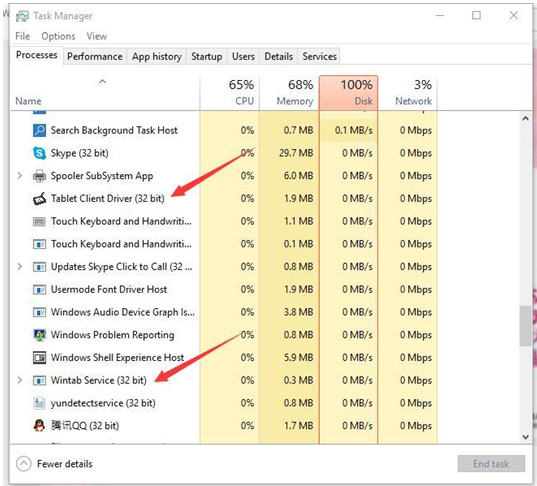
★ “I don’t see Tablet Client Driver.”
○ Open File Explorer and double-click your C: drive.
Type wtclient into the search bar and click enter. You should see the 2 files shown in the diagram below.
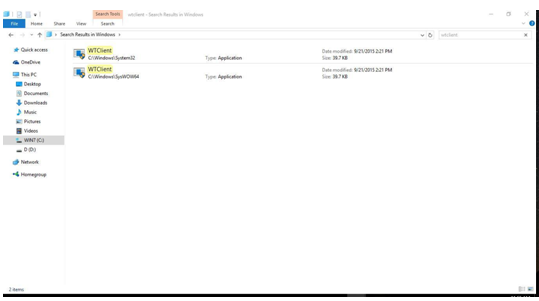
○ Double-click each of the files. The message, “Do you want to allow this app to make changes to your PC?” should appear. Click “Yes.”
○ Open Task Manager. You should now see the Tablet Client Driver process.
★ “I don’t see Wintab Service.”
○ Open Control panel > Administrative Tools and run Services.
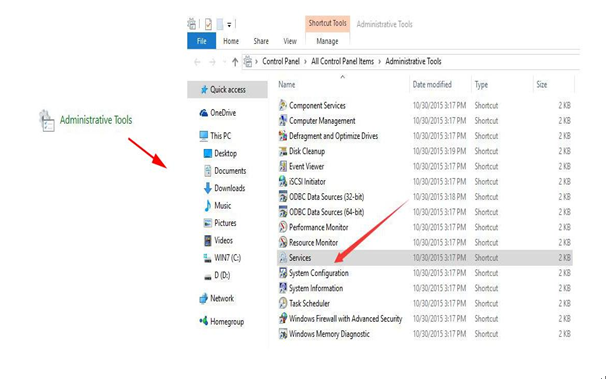
○ Find WinTab Service. Right-click and choose Start.
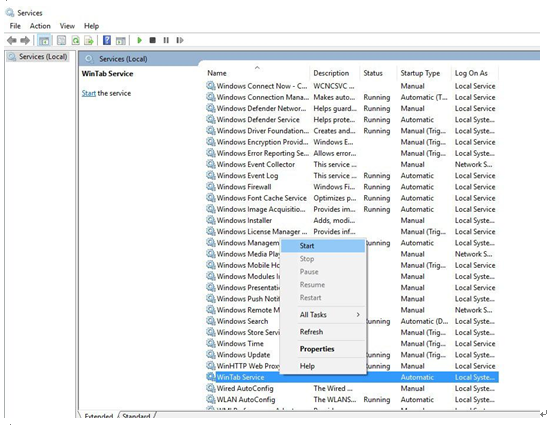
○ Open Task Manager. You should now see Wintab Service.
○ Reboot your computer. After your system loads the desktop, “Do you want to allow this app to make changes to your PC?” should appear again. Click “Yes”.
○ You should now see the tablet icon on your taskbar. Double-click it to test your pen pressure.
○ If functional, close the window and test the pressure in your chosen drawing software. Note that some software (i.e. Microsoft Paint) does not support pen pressure.